

How to: Enter an order through Data Exchange
In most cases your orders will be entered by your customers through Shopify or some other online platform. If you need to enter sales orders they can be done manually (as outlined on a prior page). There are also times when you may find it beneficial to enter the sales order information on a spreadsheet, which you can then upload into Deposco using the Data Exchange feature. Below are instructions:
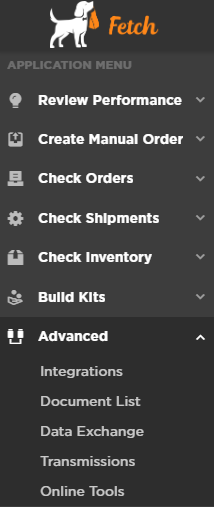
- From the Fetch Deposco menu go to “Advanced”.
- Click on “Data Exchange”.
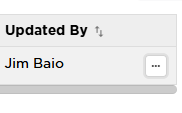
- Move all the way to the right on the screen and click on the three dots.
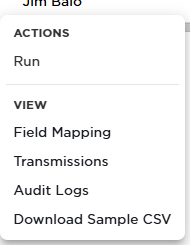
- At this point you have two options. Either click on “Download Sample CSV” if you want to enter into a fresh CSV file or “Run”, where you can upload a file you may have already updated and is ready for import.
This is what the sample CSV file looks like. Your sheet may look slightly different as it may have been tailored to your specific business:

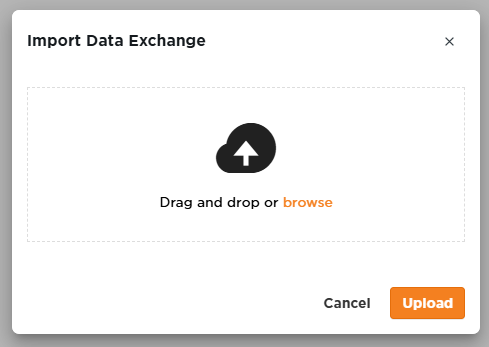
- When you select “Run” the following dialog box will pop up. Browse to find your file. Once you select it then click “Upload”.
- Check to see the status of your file and if it uploaded properly by going to “Transmissions”. The status column will either show green for a successful upload or red for a failed transmission. A failure can occur for a number of reasons. Contact Fetch to discuss if you have an issue transmitting your orders into Deposco.
